
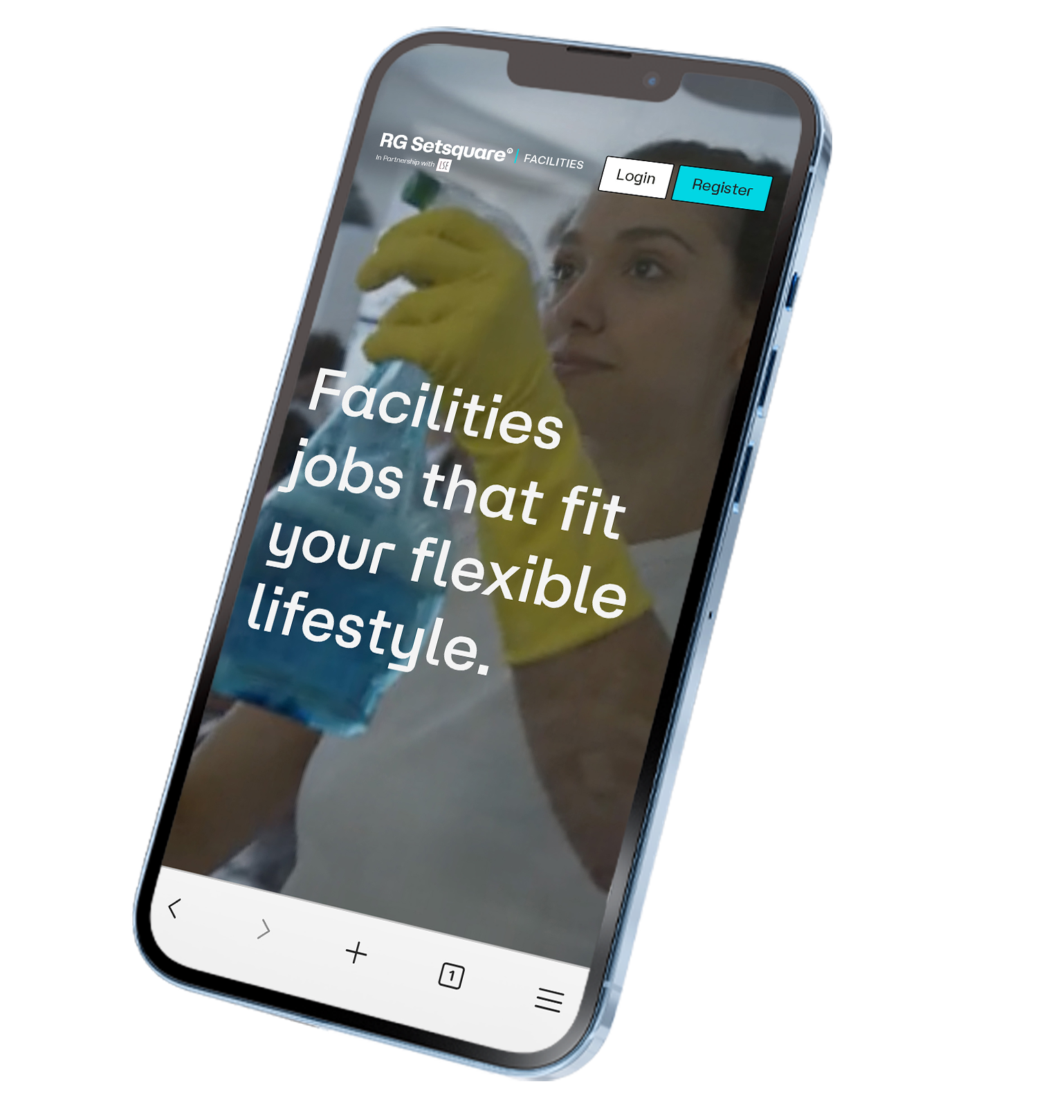

Antone Heller
4.8

Central London
How to Register with RGSetsquare Facilities
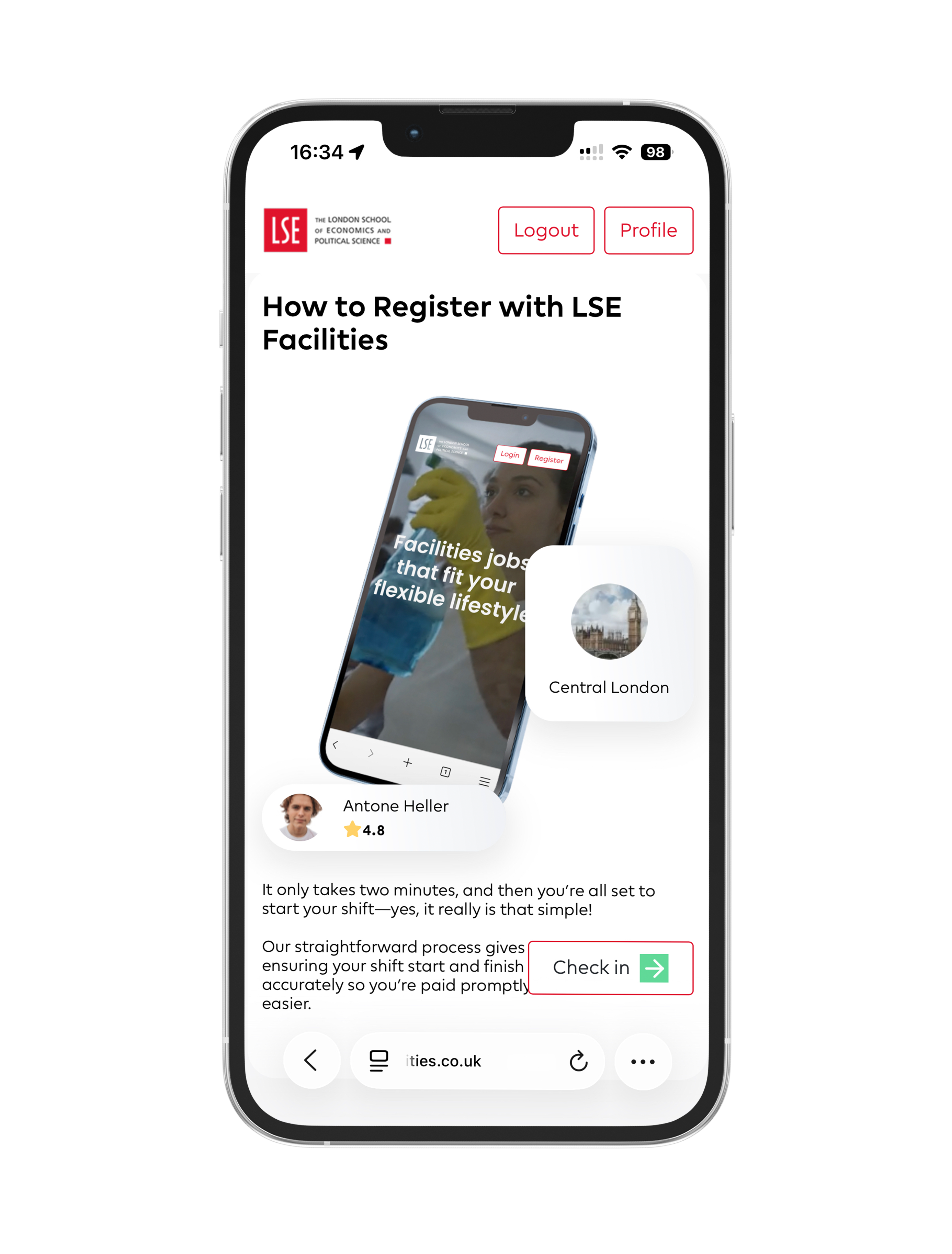
It only takes two minutes, and then you’re all set to start your shift—yes, it really is that simple!
Our straightforward process gives you peace of mind, ensuring your shift start and finish times are recorded accurately so you’re paid promptly. It couldn’t be easier.
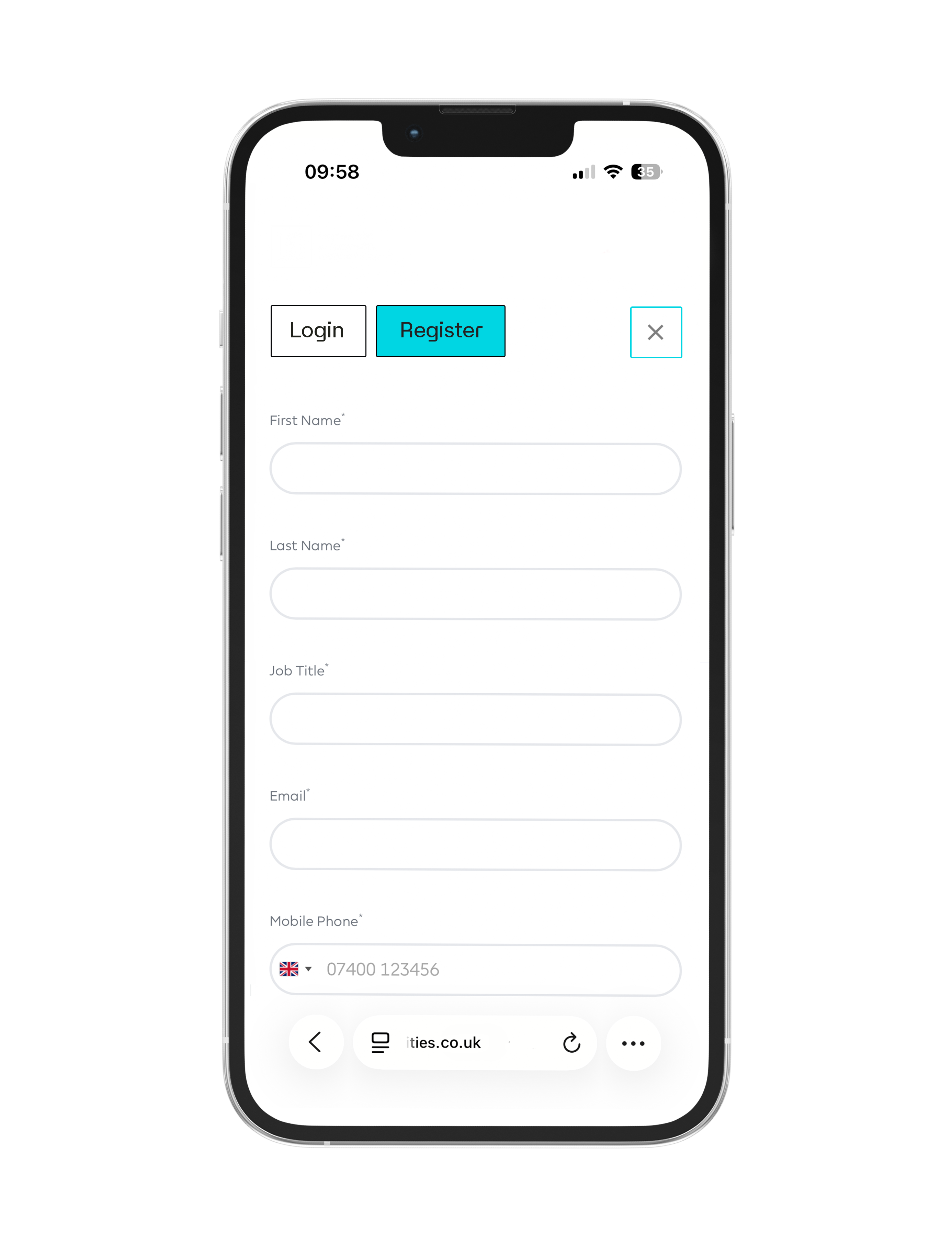
Registering and Activating
Your Account
Complete all required fields and click Register.
To activate your account, simply open the activate account email
you will receive and click on the link within.
Biometric Scan Set-up
Once our team has marked you as compliant, you will receive an SMS inviting you to set up your biometrics. Don’t worry, the process will take less than 2 minutes to complete.
Important: Before clicking the link, make sure you have your driving licence or passport ready.
Click the link in the SMS, log in to your account, and agree to set up a passkey.
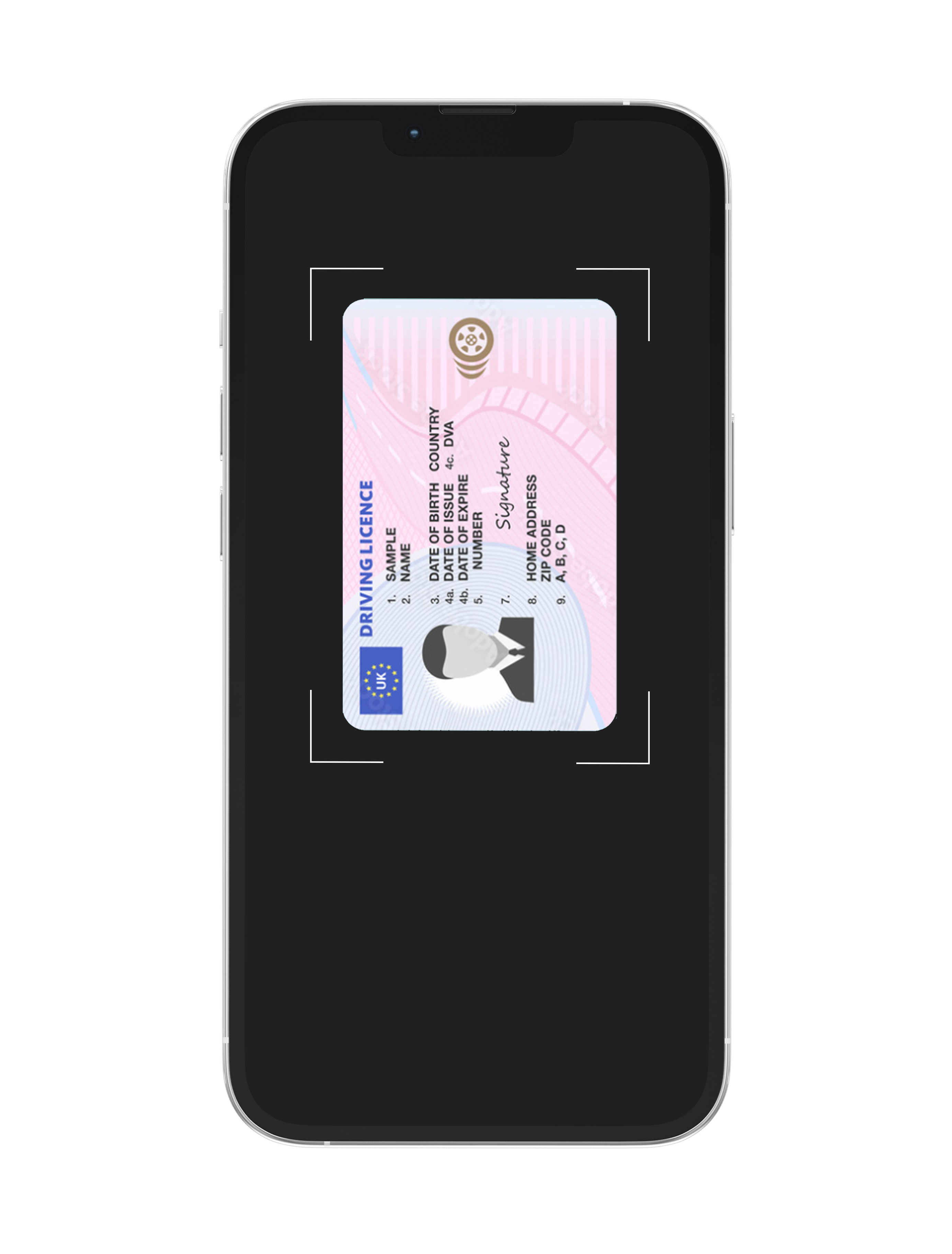
Identification
You will then be redirected to Persona, one of our trusted partners.
They will ask you to provide proof of identity, such as your passport
or driving licence. You will need to either:
- Scan your passport, or
- Take a photo of your driving licence
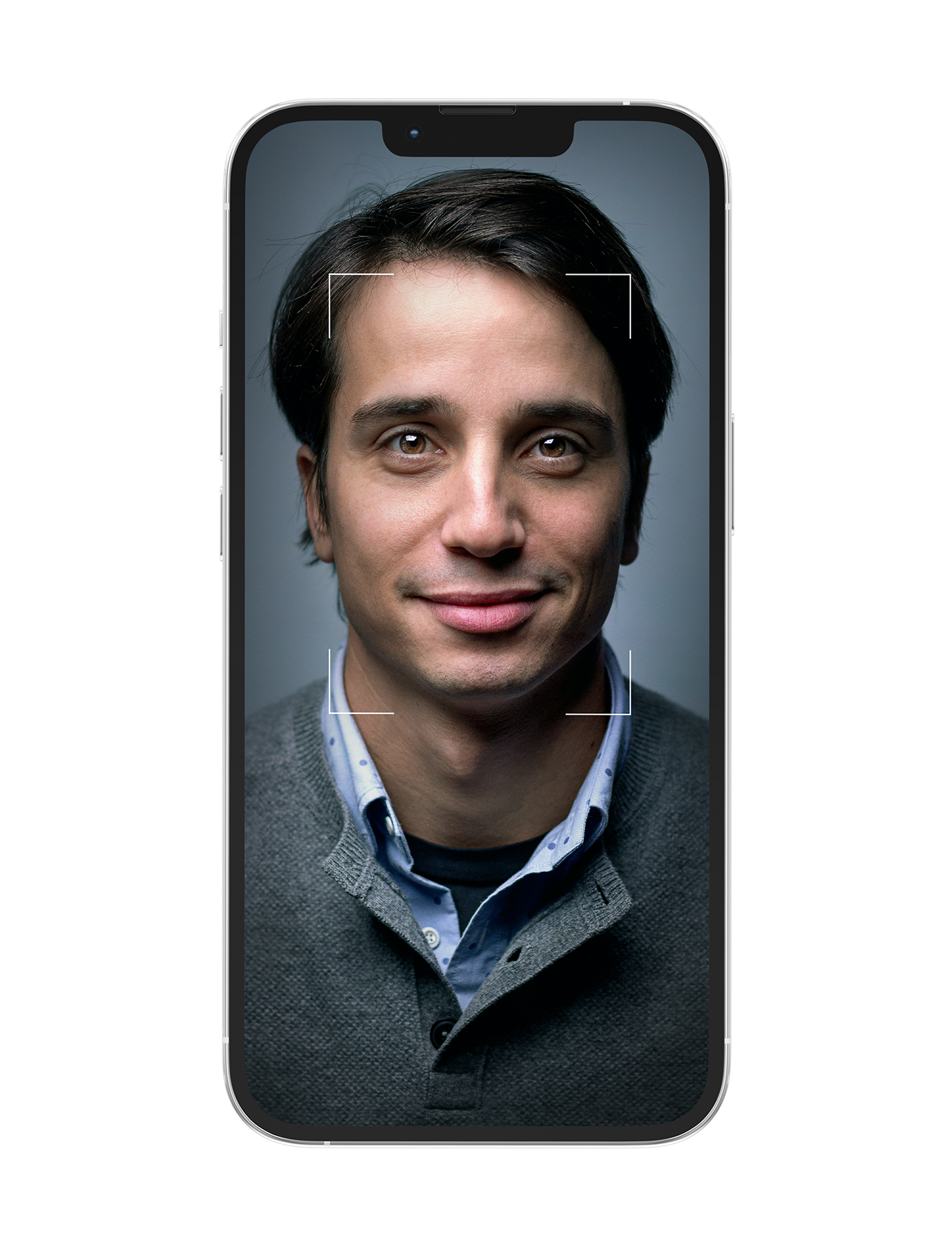
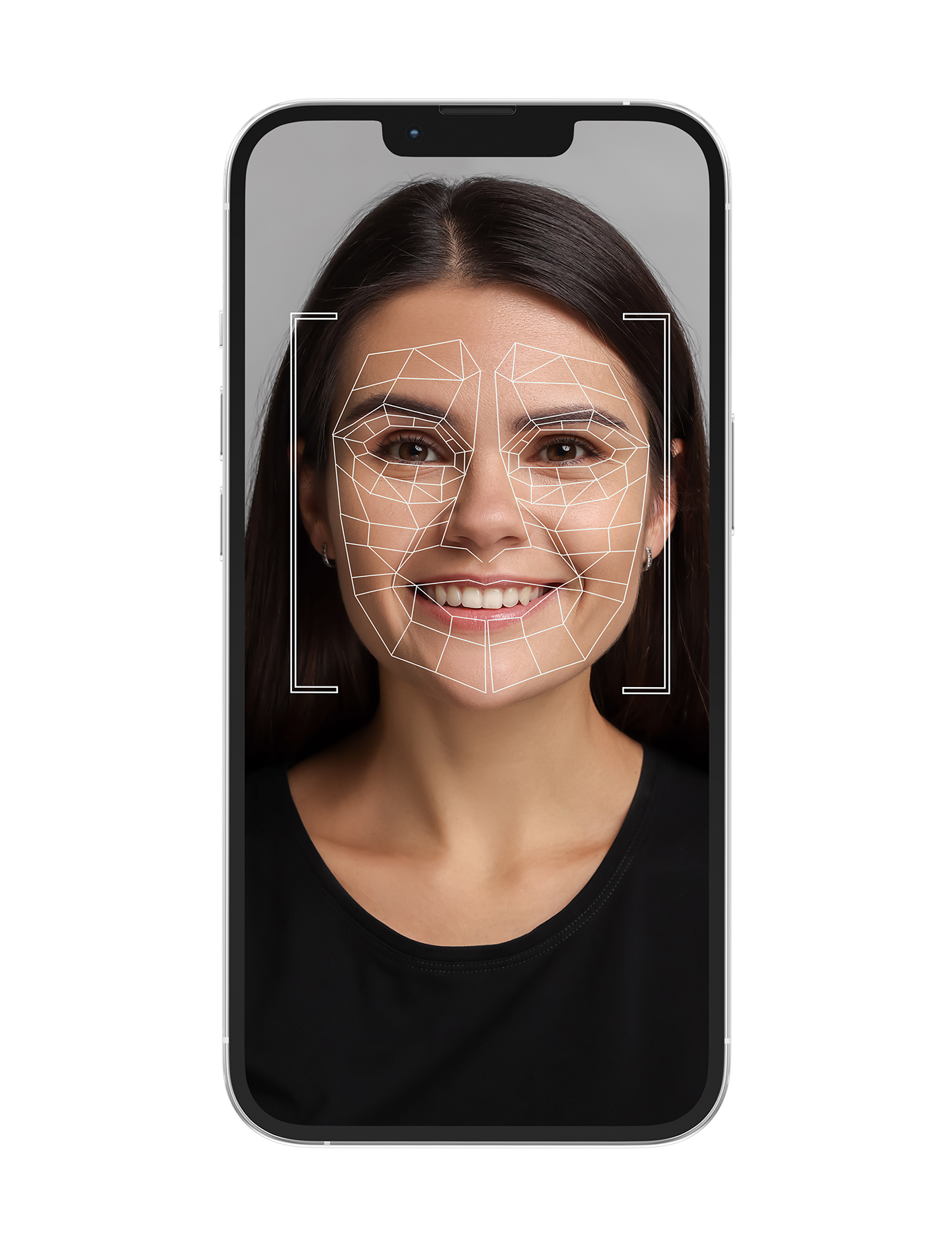
Image Capture
Next, you’ll be asked to complete a quick facial scan. Once finished, you’ll be automatically redirected back to the LSE Facilities website.
Important: Make sure your face is within the crop lines and follow the onscreen prompts
That’s it—you’re ready to start working shifts with RGSetsquare Facilities.
Checking In and Out
Each time you arrive at an LSE facility for your shift:
• As normal, sign in using each location’s timesheet document.
• Then log in to your RGSetSquare Facilities profile and click the Check In button in the bottom right of the screen.
• Complete the prompts and verify yourself via Persona. Your phone may ask for access to your camera to complete your check-in.
The whole process
should take less than 30 seconds — nice and easy!
At the end of your shift:
• As normal, sign out
using each location’s timesheet document.
• Then log in to your
RGSetSquare Facilities profile and click the Check Out button in the
bottom right of the screen.
• Complete the
prompts and verify yourself via Persona. Your phone may ask for access to your
camera to complete your check-in.
The whole process
should take less than 30 seconds — nice and easy!
Important Reminder: Please ensure that location services are
enabled on your mobile device, as this is required for check-in
and check-out.
FAQ & Contact
Need help?
If you have any questions or concerns, please contact us:
• Phone: 020 3376 2454
• Email: info@rgsetsquarefacilities.com
How long are my details stored with Persona?
Your information is deleted as soon as you have completed the process.
No records of your passport or driving licence are retained.
How to Enable Location Services:
IPHONE
1. Open Settings
2. Scroll down and tap Privacy & Security
3. Tap Location Services
4. Ensure Location Services is turned On
5. Scroll down and select your browser (e.g. Safari or Chrome)
6. Set access to While Using the App
7. Turn on Precise Location
ANDROID
1. Open Settings
2. Tap Location
3. Turn Use Location On
4. Tap App location permissions
5. Select your browser (e.g. Chrome)
6. Choose Allow only while using the app
7. Enable Precise location (if available)